
Guide
Translate an iMessage audio message on iPhone
Someone sent you an audio message in Messages, in a language you don't speak. Here's how to understand it and answer back, right on your iPhone.
The short answer
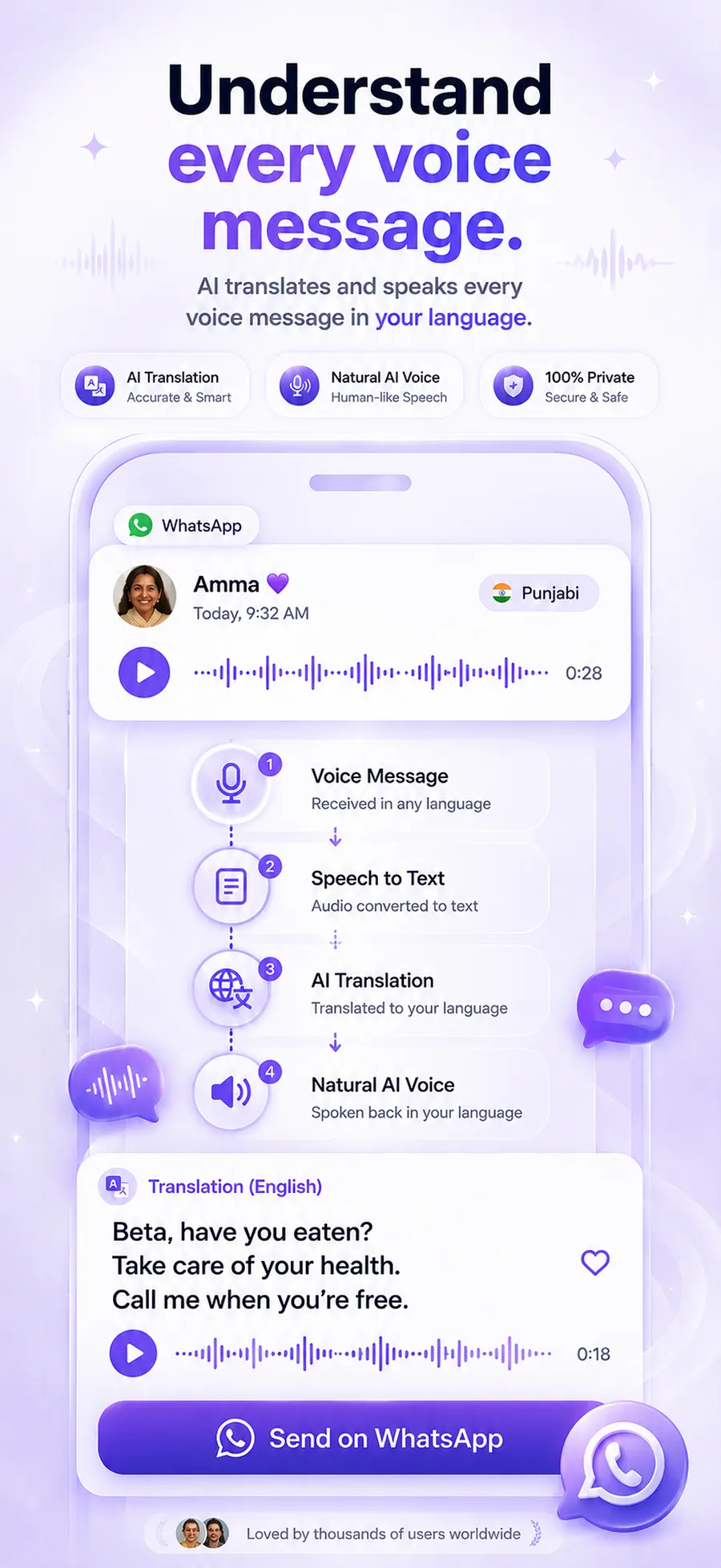
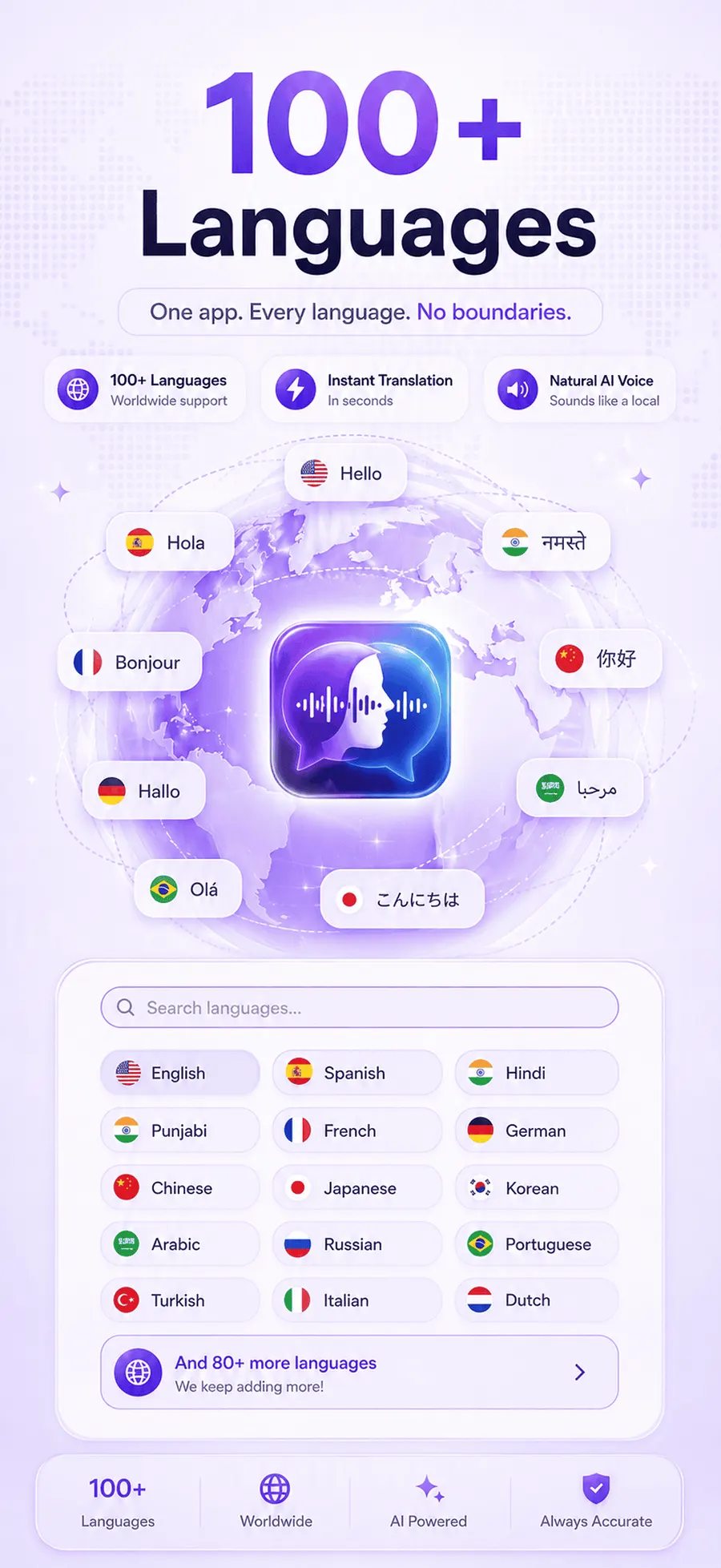
To translate an iMessage audio message on iPhone, share the audio message from the Messages app into ReplyLingo, a voice message translator for iPhone that is free to start. ReplyLingo transcribes the audio, translates it into your language and reads the translation aloud in a few seconds, in 100+ languages. You can then record a reply in your own language and ReplyLingo translates and speaks it in the other person's language, ready to send back in Messages.
Can iPhone translate audio messages by itself?
Not in one step. iPhone can show a transcript of an audio message in Messages, but the transcript is in the language that was spoken. If the message is in a language you don't understand, you'd still have to copy the text into a translator, and you'd have no easy way to answer back by voice in their language.
ReplyLingo goes straight from the audio to your language, written and spoken, and handles the reply too.
How to translate an iMessage audio message
Understand the audio message
- 1Download ReplyLingo from the App Store. No sign-up needed: continue as a guest.
- 2In Messages, if the audio message shows Keep, tap it so the message doesn't expire.
- 3Press and hold the audio message and share it.
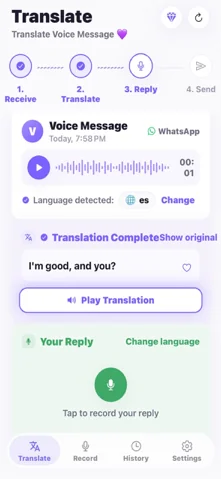
- 4Choose ReplyLingo from the iOS share sheet.
- 5Read the transcript and listen to the translation in your language.
Reply in their language
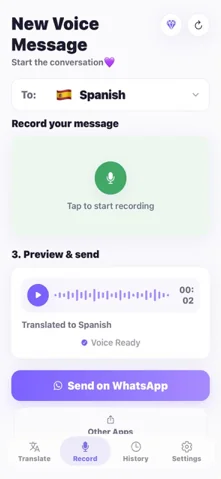
- 1Record your reply in your own language.
- 2ReplyLingo translates it and speaks it in the other person's language.
- 3Share the translated audio back into the Messages conversation.
Tip: stop audio messages from disappearing
By default, iPhone can delete audio messages a couple of minutes after you play them unless you tap Keep. To keep them automatically, go to Settings, then Messages, and under Audio Messages set Expire to Never. That way you can translate an audio message later, not just right after it arrives.
Works beyond iMessage too
The same steps work for voice notes from WhatsApp, Telegram, Instagram, Messenger and any app that can share an audio file. ReplyLingo detects the spoken language automatically across 100+ languages, and your conversation history stays on your device.
Ways to understand an iMessage audio message in another language
| Option | Translates it? | Spoken translation? | Voice reply in their language? |
|---|---|---|---|
| ReplyLingo | Yes, 100+ languages | Yes | Yes |
| iPhone audio message transcript | No, same-language text | No | No |
| Copying the transcript into a translator | Yes, as text | No | No |
Related guides
Frequently Asked Questions
Translate your next audio message
Free to start. No sign-up needed. Continue as a guest.