
Guide
How to Turn a WhatsApp Voice Message into Text (and Translate It)
Don't want to play the audio, or can't understand the language? Here are the two ways to read a voice note as text, and when to use each.
Last updated: October 2026
The short answer
To turn a WhatsApp voice message into text, turn on WhatsApp's Voice Message Transcripts, or share the voice note to ReplyLingo. WhatsApp's transcript stays in the language that was spoken, while ReplyLingo gives you the original wording and a translation into your language.
Option 1: WhatsApp's built-in Voice Message Transcripts
WhatsApp can add a text transcript under a voice message, so you can read it instead of playing it. It is free and built in, and it is the right choice when you simply want to read voice notes in a language you already understand.
How to turn it on
- 1Open WhatsApp Settings and tap Chats.
- 2Tap Voice Message Transcripts and turn it on.
- 3Choose your transcript language from the list.
- 4New voice messages now show a transcript under the audio.
What the built-in transcript can't do
- It writes the text in the same language that was spoken. A Portuguese voice note gets a Portuguese transcript, so it doesn't help if you can't read Portuguese.
- It covers only a limited set of languages, so a voice note in an unsupported language may get no transcript at all.
- It applies to new voice messages after you turn it on, not to older ones.
- It gives you no way to answer by voice in the other person's language.
Option 2: Share the voice message to ReplyLingo
ReplyLingo is built for the case where reading the transcript isn't enough because you don't speak the language. It works from the share menu, on both iPhone and Android, so it also works for voice notes you received before you installed it.
Five steps
- 1Install ReplyLingo from the App Store or Google Play and continue as a guest.
- 2In WhatsApp, long-press the voice message and tap Share.
- 3Choose ReplyLingo from the share sheet.
- 4Wait a few seconds while ReplyLingo detects the language and transcribes the voice message.
- 5Read the translation in your language, or tap Show original to read the transcript in the language that was spoken.
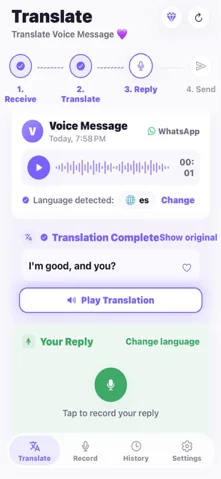
Original text or translation: which one do you get?
ReplyLingo shows the translation in your language first. Tap Show original to switch to the transcript in the language the sender spoke. That is useful when you want to paste the original wording into a translator you trust, or show it to someone who speaks that language.
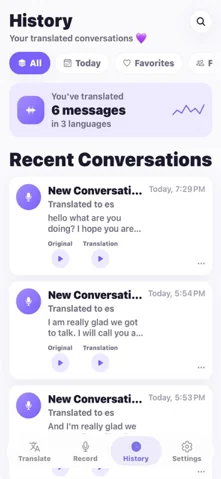
Past voice notes stay in the History tab on your device, so you can come back to the text later. The History screen also has a Copy Transcript option.
Tips for an accurate transcript
- Voice notes of up to about three minutes work best. If a voice note is longer, ReplyLingo translates the first three minutes and tells you so.
- Background noise, music and several people talking at once lower accuracy for every speech-to-text tool, including WhatsApp's own.
- Names, places and slang are the most likely things to come out wrong. Double-check anything important, such as an address, a date or an amount of money.
- If you only need text in a language you already read, WhatsApp's built-in transcripts may be all you need.
WhatsApp transcripts vs ReplyLingo
| WhatsApp Voice Message Transcripts | ReplyLingo | |
|---|---|---|
| Text of the voice note | Yes, for supported languages | Yes, original and translated |
| Translates into your language | No | Yes |
| Languages | A limited set | 100+, detected automatically |
| Works on older voice notes | No, only new ones after you turn it on | Yes, share any voice note |
| Voice reply in their language | No | Yes |
| Price | Free, built into WhatsApp | Free to start, Pro for more |
Related guides
Frequently Asked Questions
Read your next voice message instead of playing it
Free to start. No sign-up needed. Continue as a guest.